Table of Contents
NVP Account Setup

NVP Account Setup
Welcome to QCare Plus. As a contracted medical provider, you’ll access Microsoft 365 and the QCare Plus Platform using the Microsoft Edge browser secured by QCare Plus security policies. This standard lets us apply consistent security controls on Windows, macOS, iOS, and Android so you can work efficiently while we protect patient information. Using Edge with MAM helps QCare Plus meet our HIPAA obligations in a bring‑your‑own‑device (BYOD) environment and maintain the integrity of our clinical systems and data.
Installing Edge for Windows
- Go to the Download page for Microsoft Edge at https://www.microsoft.com/en-us/edge/download.
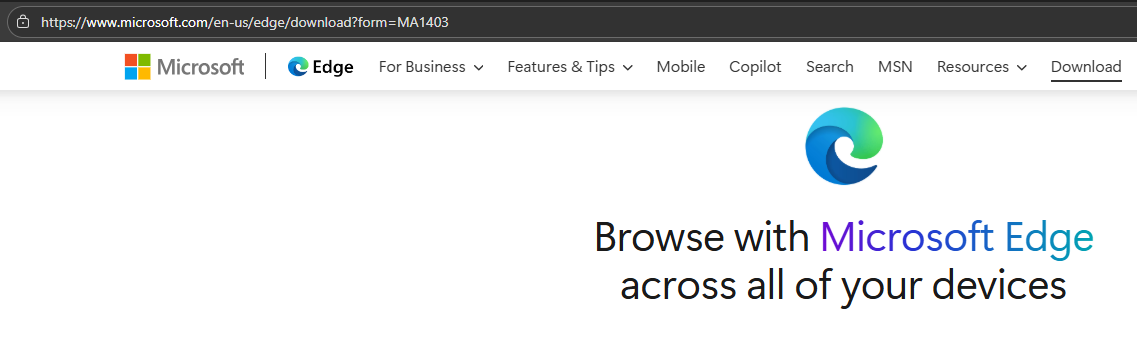
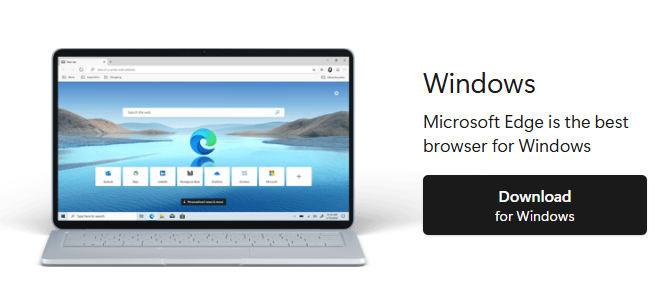
- Select the Windows download option.
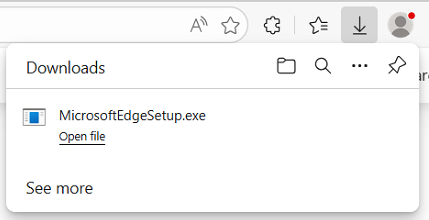
- Run/Open the MicrosoftEdgeSetup installer to begin the installation.
- Follow the on-screen instruction which will automatically download and install Microsoft Edge.
Once completed, please proceed to the Initial Account Setup section.
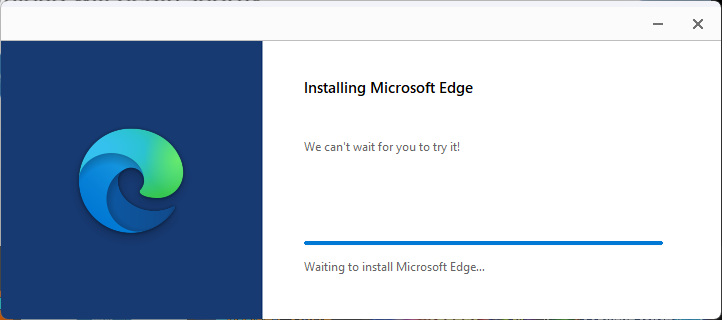
Installing Edge for Mac
- Go to the Download page for Microsoft Edge at https://www.microsoft.com/en-us/edge/download.
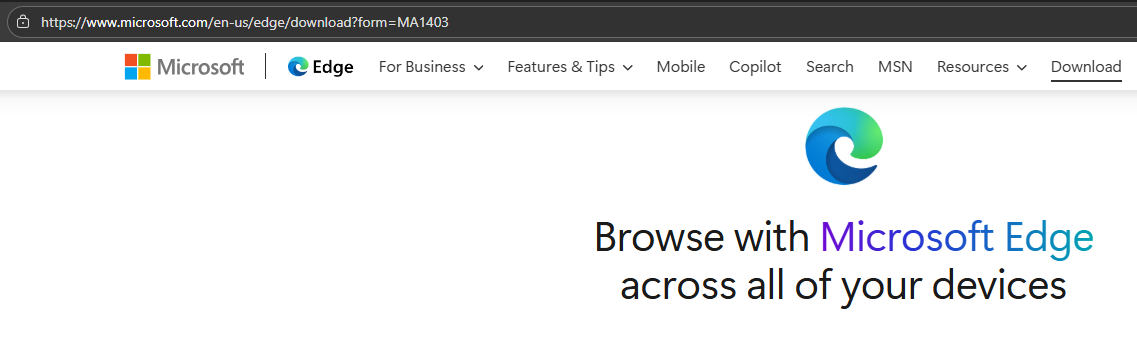
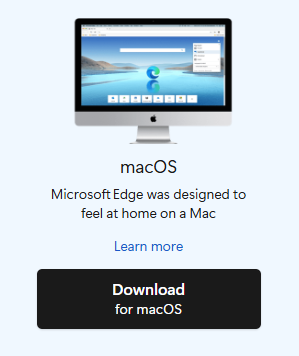
- Select the macOS download option.
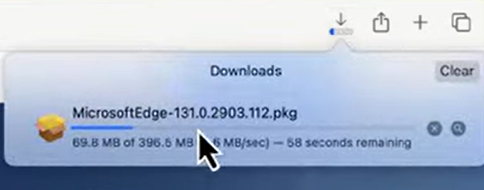
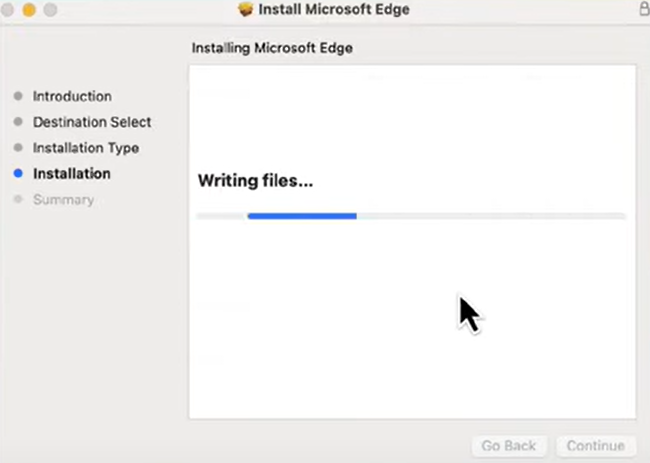
- Run/Open the MicrosoftEdge package to begin the installation.
- Follow the on-screen instructions to download and install Microsoft Edge.
Once completed, please proceed to the Initial Account Setup section.
Initial Account Setup
- Launch Microsoft Edge.
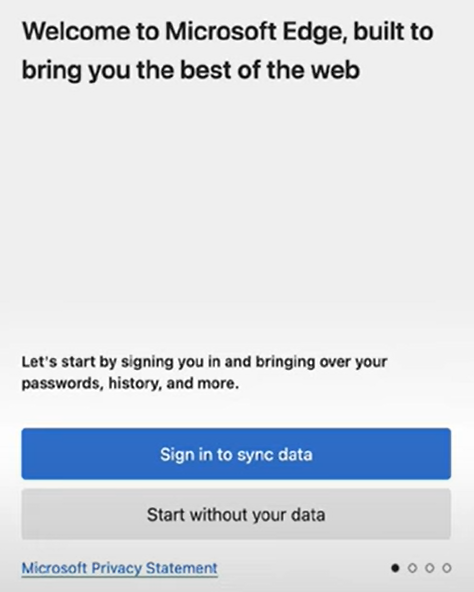
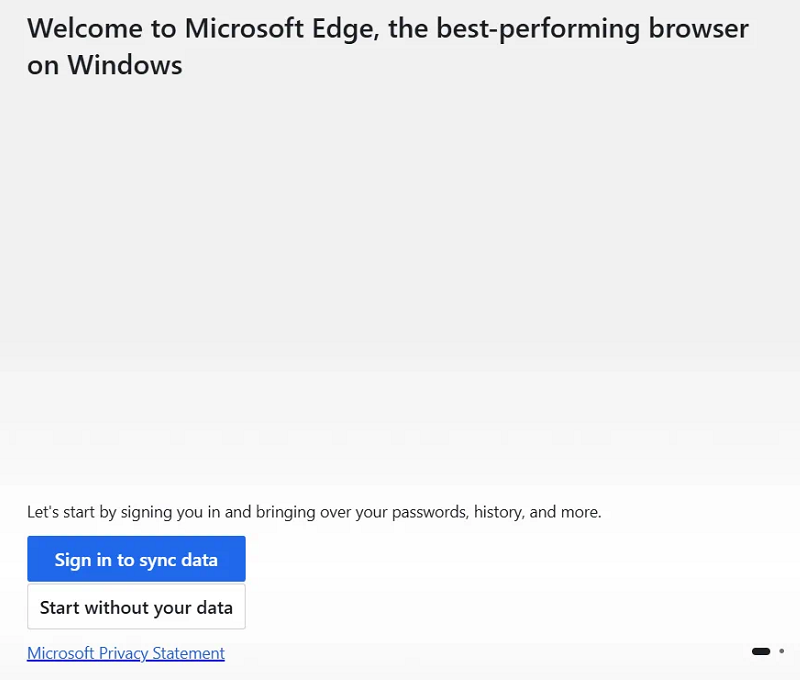
- On First Launch, select "Start without your data" to continue with initial setup.
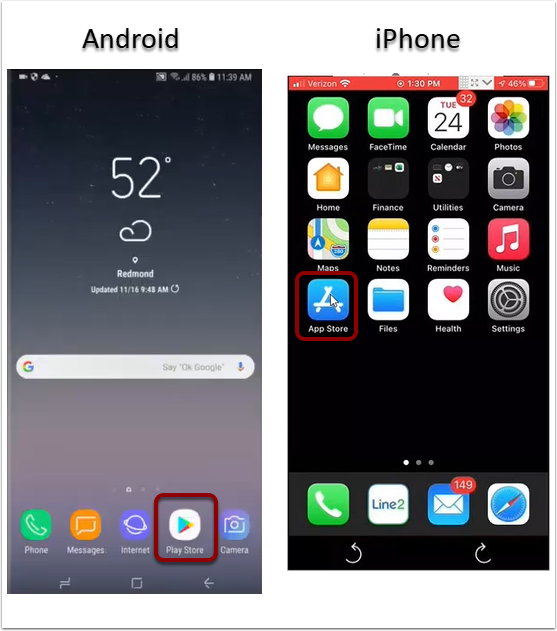
- On your Mobile Device select the App Store on iPhone or the Play Store on Android.
- On your Mobile Device search for the Microsoft Authenticator App.
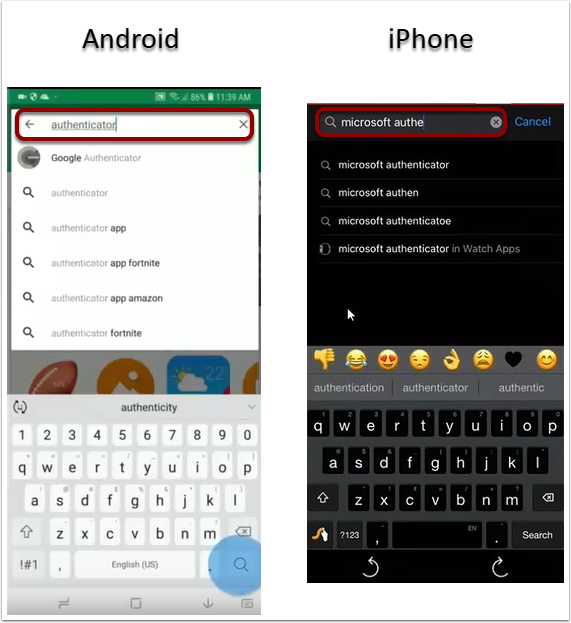
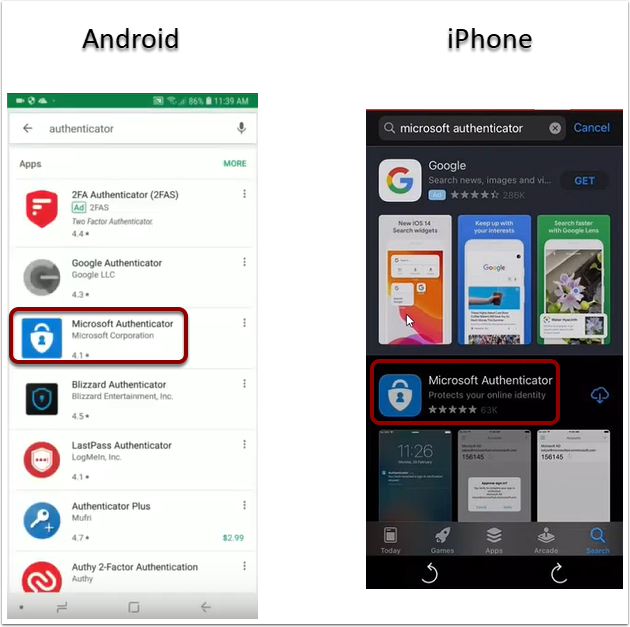
- On your Mobile Device select the Microsoft Authenticator.
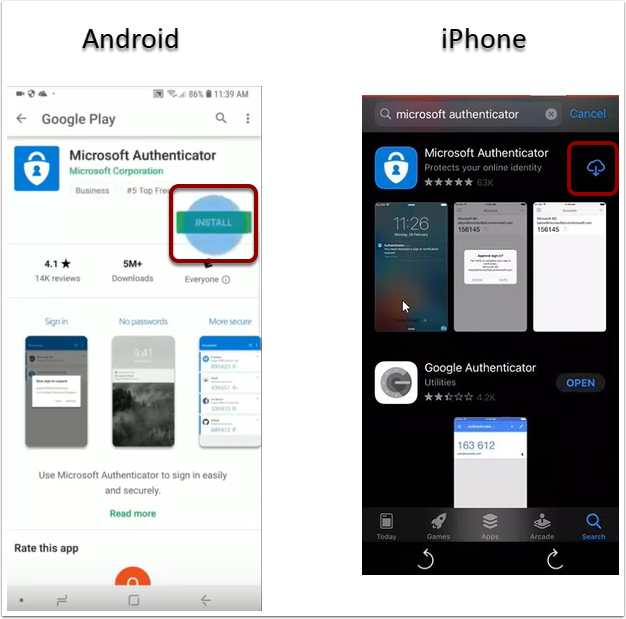
- On your Mobile Device click the install button on Android or download cloud icon on iPhone.
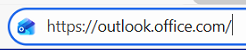
- To begin the process, on your Workstation open your browser click here.
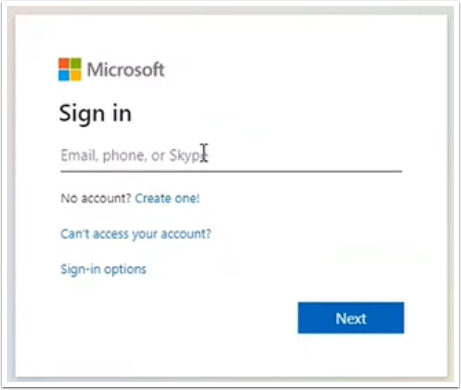
- On your Workstation you will be prompted to sign-in, please type your QCare Plus email that you should have received in your welcome email and click “Next” to proceed.
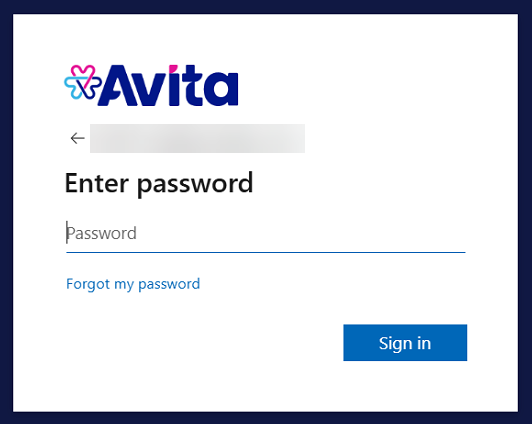
- Enter in your temporary password that you should have received in your welcome email to proceed.
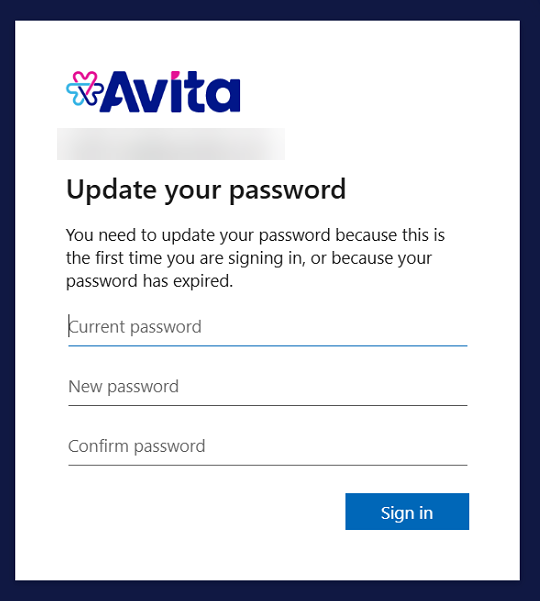
- If prompted, please re-enter your temporary password and a new password to change your password.
- Must contain at least sixteen (16) non-repeating characters.
- Cannot consist of easily guessed or obtained personal information, names of family members, pets, etc
- Consisting of three or more dictionary words
- An example of such a passphrase might be: Winter2020#Ski_Party!
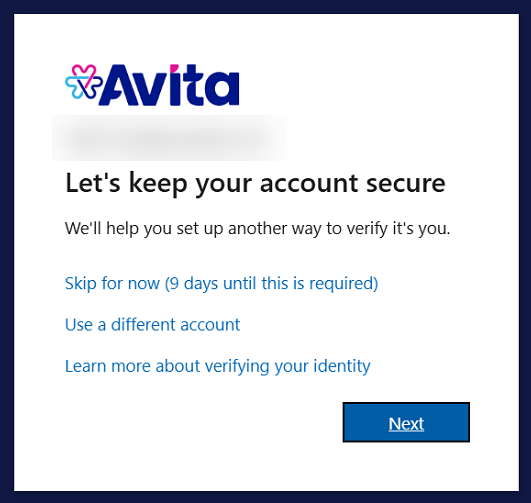
- On your Workstation you will be prompted to keep your account secure, please select “Next” to proceed.
- You will now be asked to download Microsoft Authenticator as completed in the previous steps.
Select "Next" to proceed or if you haven't done so already, please download Microsoft Authenticator on your mobile device.
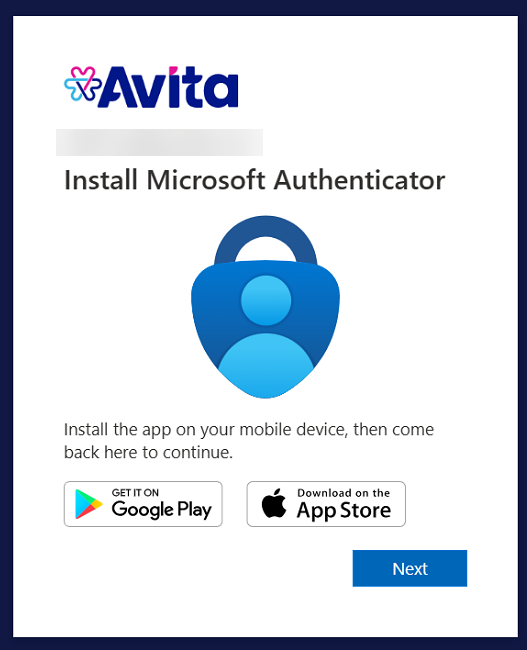
- Next set up your account in the app, select "Next" to proceed.
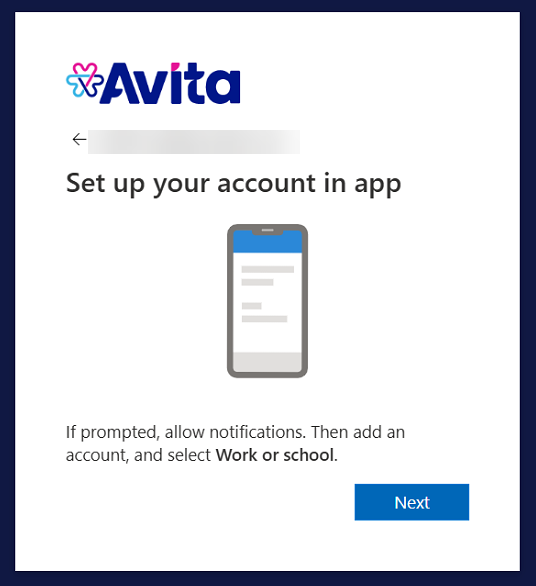
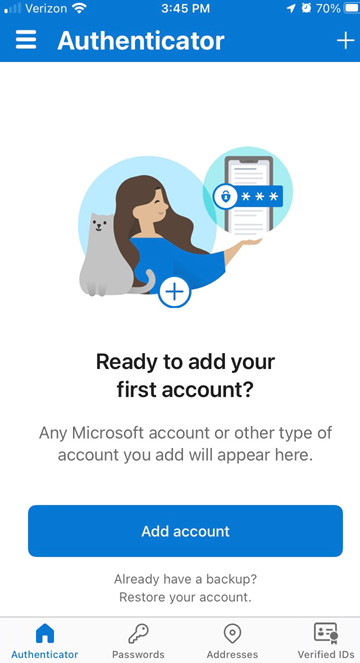
- On your Mobile Device select the "Add account" button on Android or the "Scan a QR code" button on iPhone.
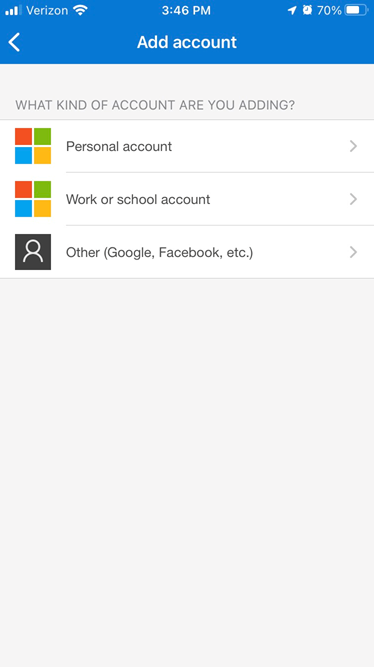
- On your Mobile device select "Work or school account" to proceed.
- On your Mobile device select "Scan QR code" to proceed.
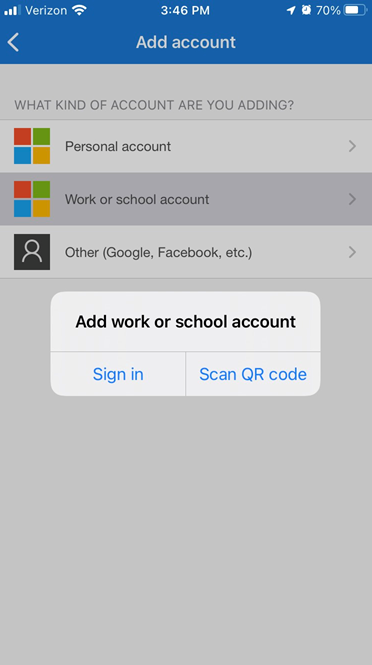
- You will see a QR code on your workstation needed for the next step on your Mobile Device.
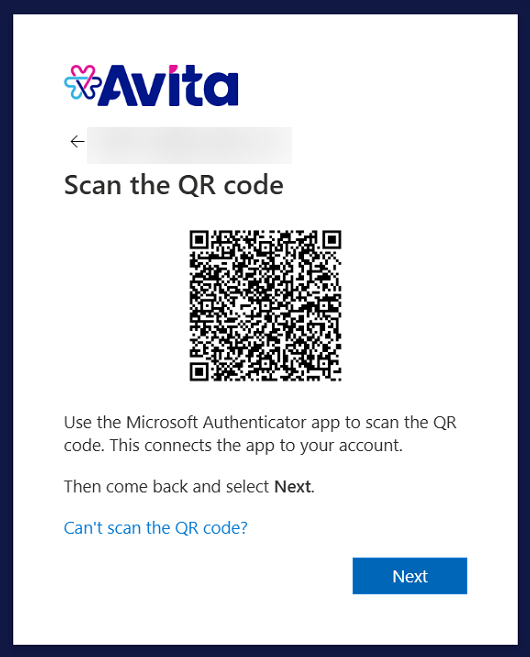
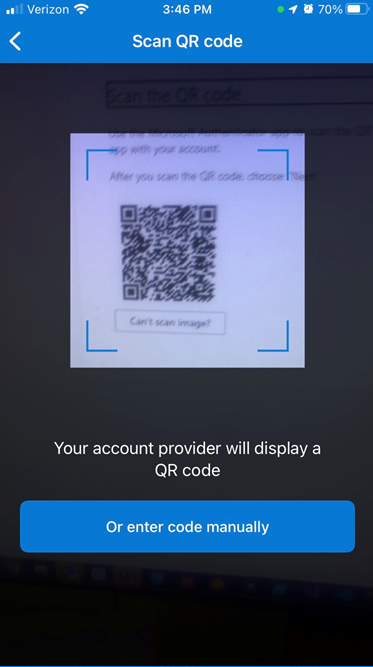
- On your Mobile Device place the QR code in the highlighted area to scan.
- Use the code displayed on your workstation.
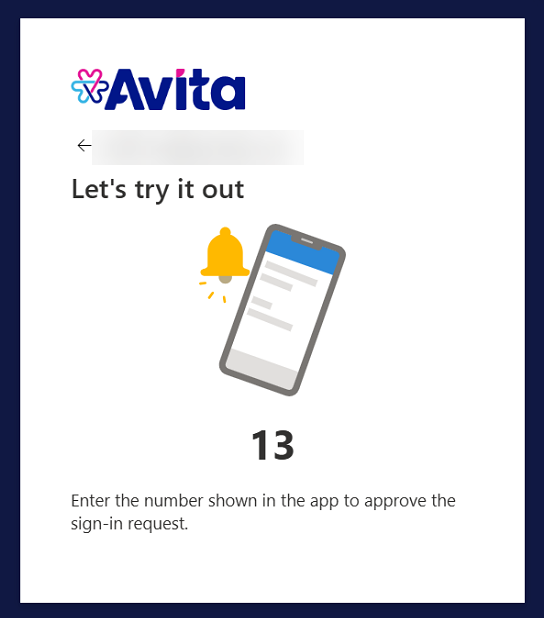
- On you Mobile Device enter the number and select Yes.
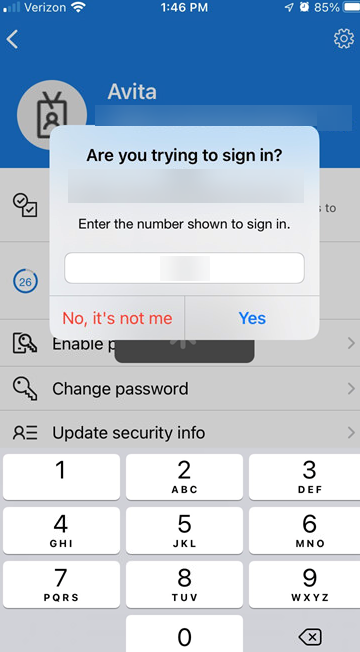
- After Verification is complete the Authenticator will show approved.
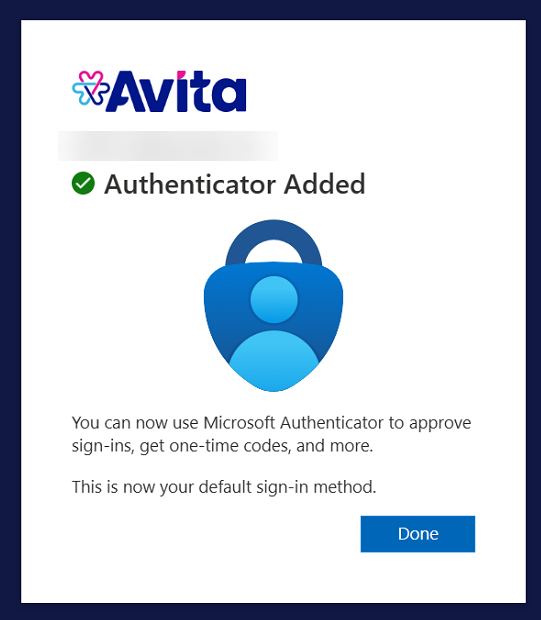
- After completing the Authenticator setup, you will be sent to a warning page before accessing Outlook.
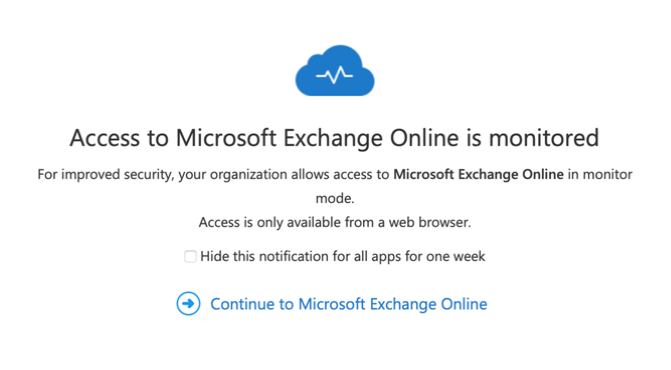
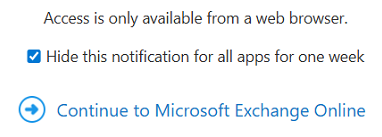
- You will be prompted with this warning once a week and will need to check the Hide option to suppress it for a week.
Signing into your Work Profile in Microsoft Edge
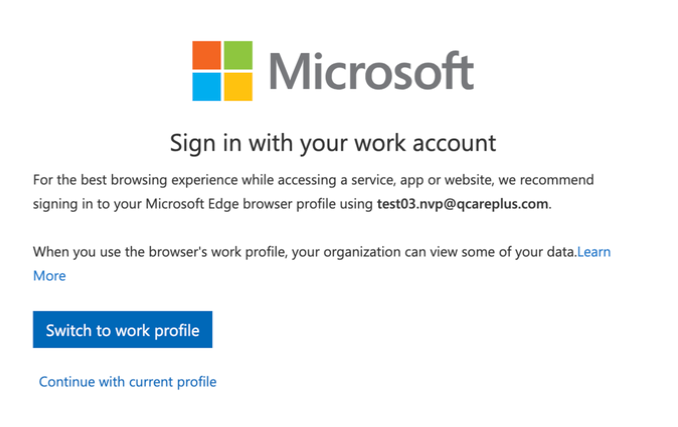
- You will now see a warning about not being signed into your work account. Before proceeding follow the next steps to sign into your Work profile.
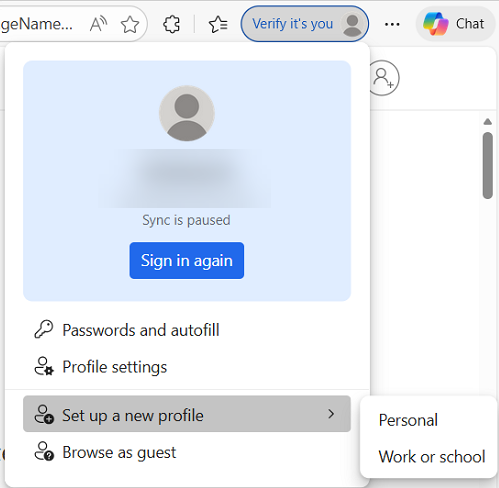
- Next we will link Edge to your Work profile, go to your profile and under Set up a new profile select "Work or school".
- Select "Sign in to sync data" in the new window.
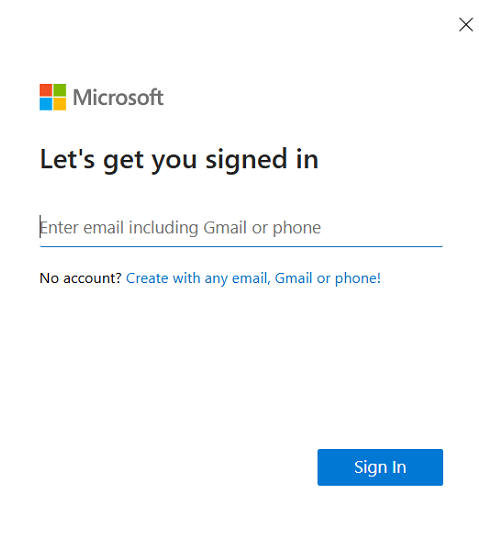
- When prompted for your email, enter your work email to sync the profile and select Sign in.
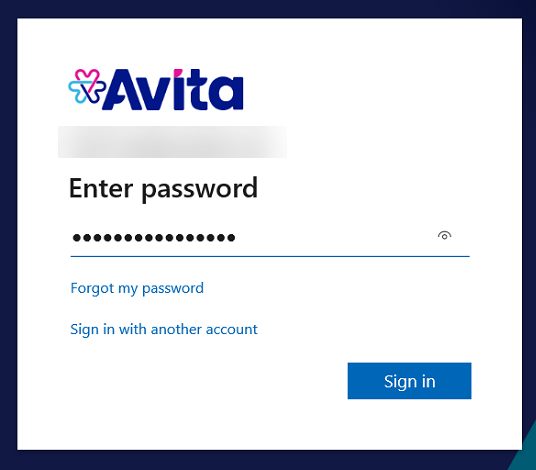
- When prompted, enter your password for your work email and select Sign in.
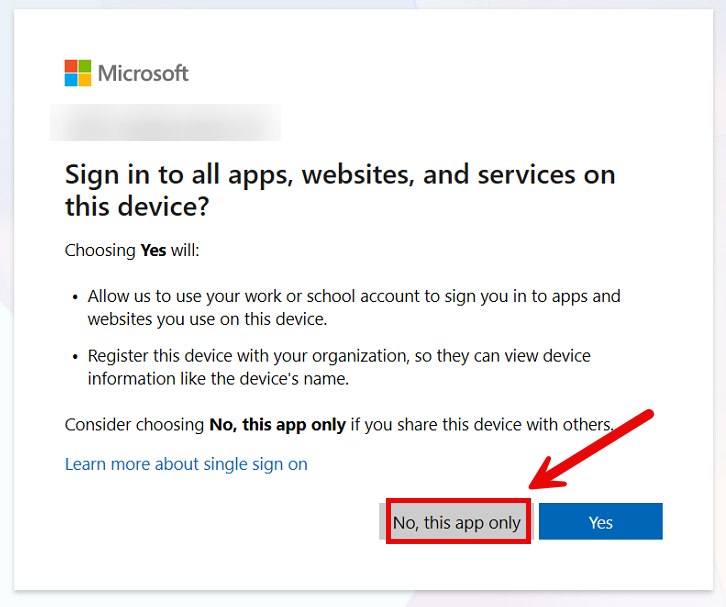
- If you are presented to sign in to all apps, select the option for "No, this app only".
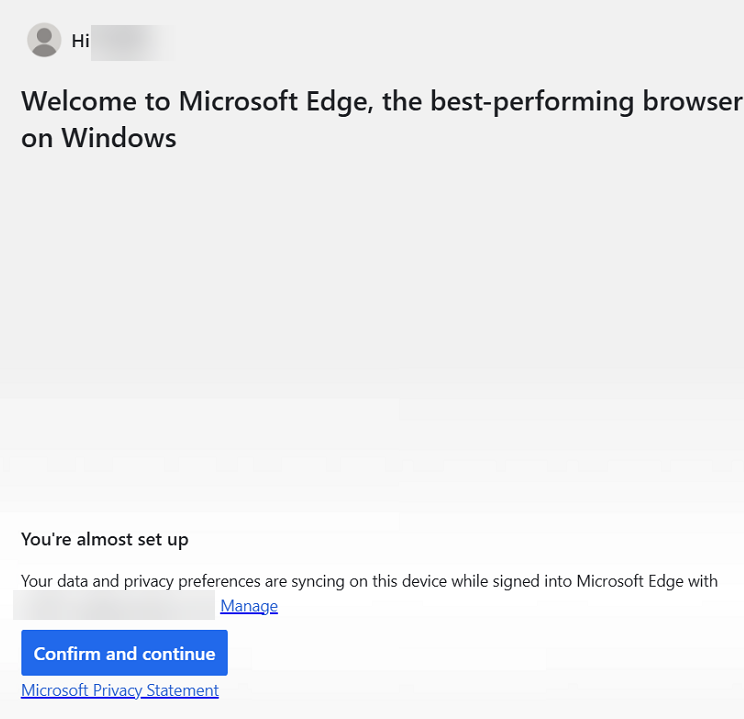
- Select Confirm and continue to finish linking your profile and begin using Microsoft Edge.
Accessing QCare Plus Applications
- You can now go here again to access Outlook using your Work profile this time.
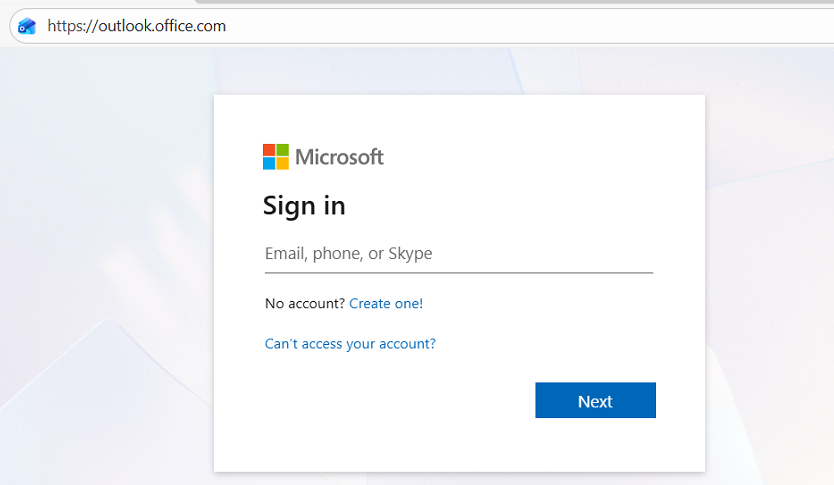
- On your Workstation you will be prompted to sign-in again, please type your email and click “Next” to proceed.
- Enter in your current password to proceed.
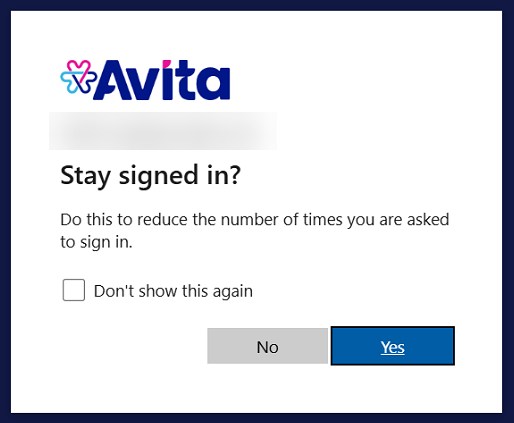
- After signing in it will ask if you want to stay signed in, select Yes to proceed.
- After you may see a warning for Outlook (formerly called Microsoft Exchange Online) again.
- You will be prompted with this warning once a week and will need to check the Hide option to suppress it for a week.
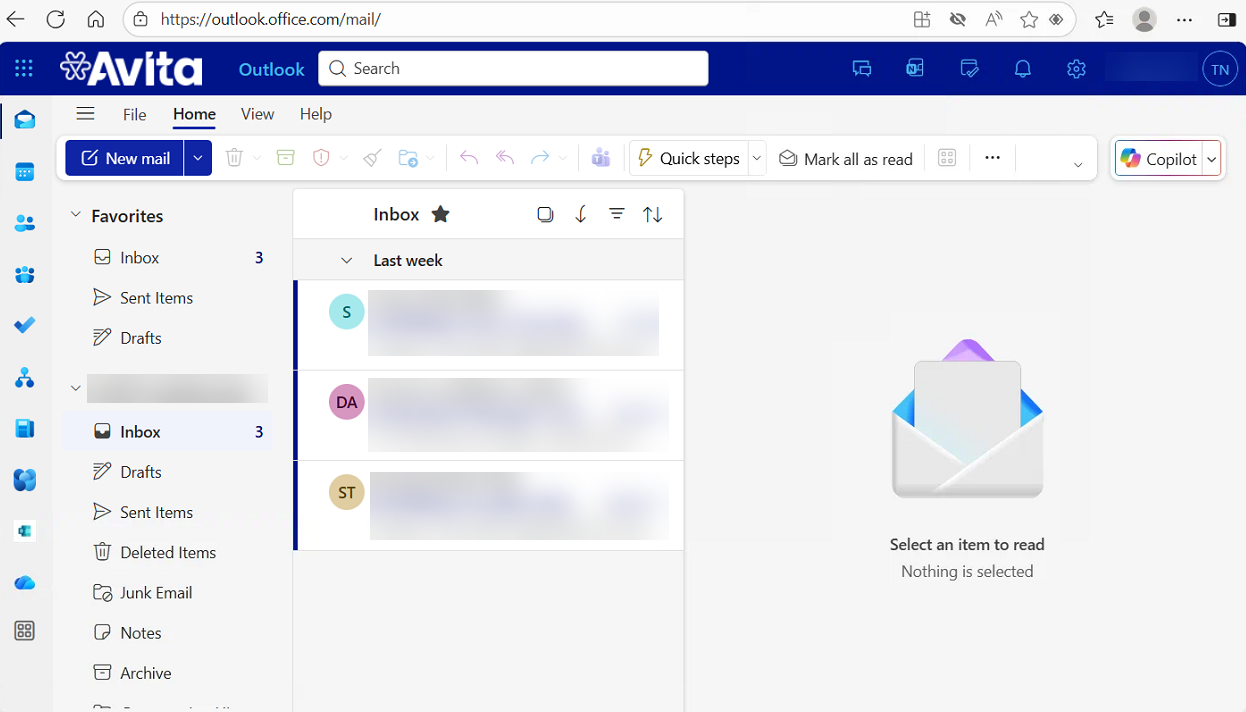
- You will now be able to access your Emails via Outlook on the web at this time.
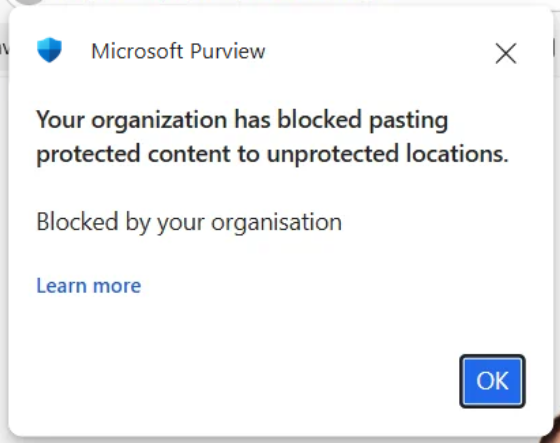
- Please remember that QCare Plus data may not be downloaded or copied on to personal devices. If you attempt to copy company data, you’ll see the message below indicating the content is protected and cannot be copied.
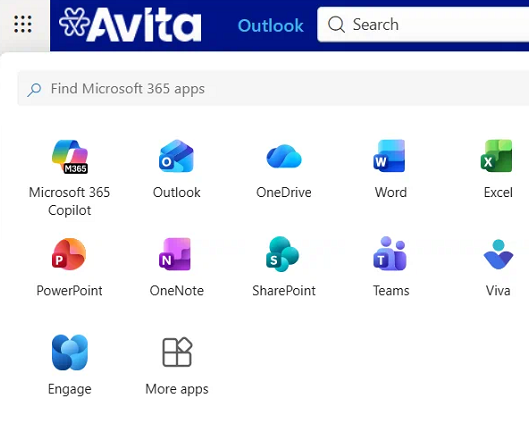
- To access other Office 365 apps such as Teams, you can select the 9 dots at the top left.
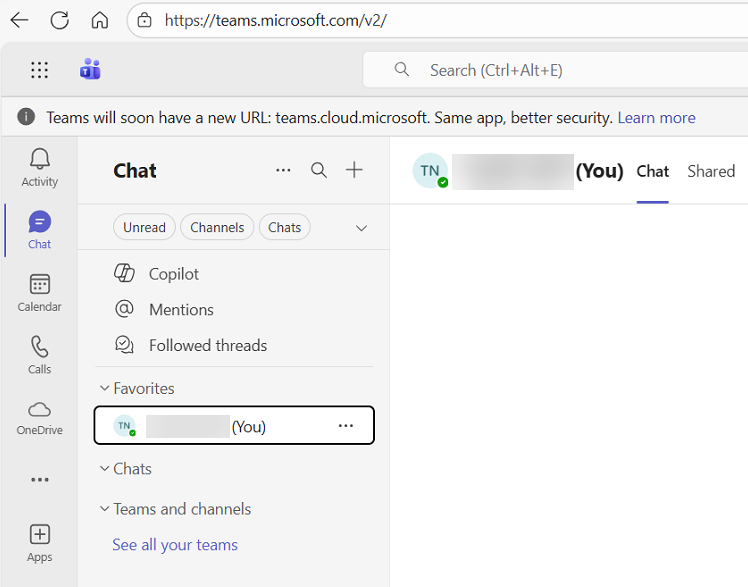
- Or alternatively to access Microsoft Teams, please go to https://teams.microsoft.com.
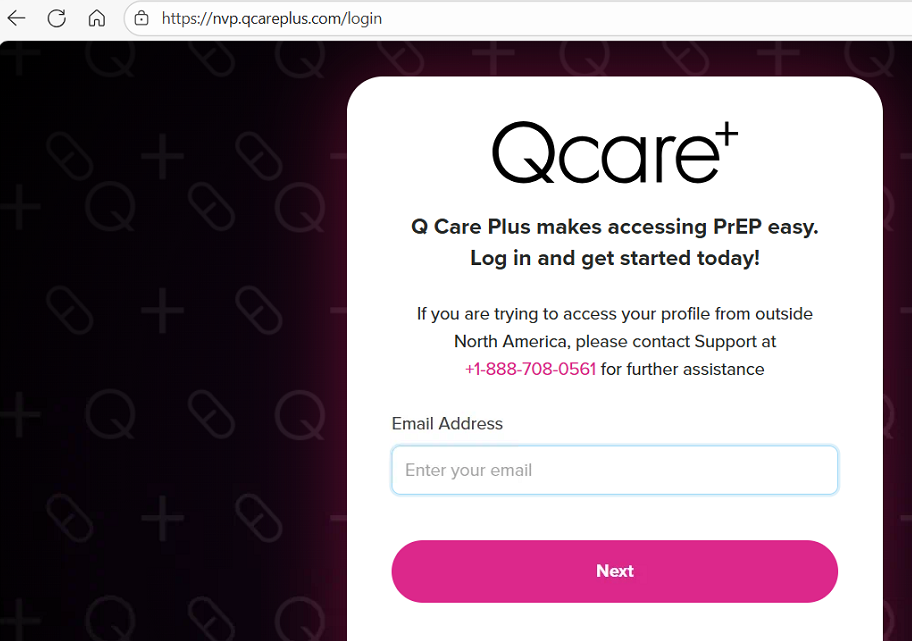
- And lastly you can access the QCare+ Portal by going to https://nvp.qcareplus.com.
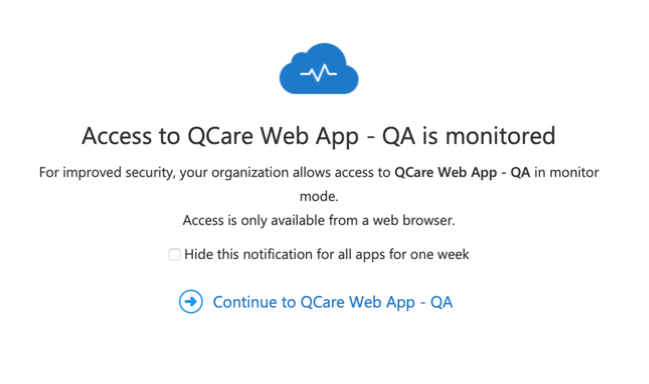
- You will be presented with the warning message below when accessing the QCare Plus Portal. You may chose to hide this notification by checking the box in the dialog. This will prevent the message from being displayed for up to one week.
- For security, QCare Plus resources are available only through Microsoft Edge. If you’re prompted to ‘Sign in with Edge’, reopen the page in Edge to continue. In our BYOD model, QCarePlus security policies safeguard work data while QCare Plus does not access your personal content (apps, photos, or texts).